
User Management
The User Management page lets administrators manage all users in their tenant, approve join requests from new employees, and share the tenant join code.
Access it by clicking your name at the bottom left of the sidebar and selecting User Management.
User Management Tab
Section titled “User Management Tab”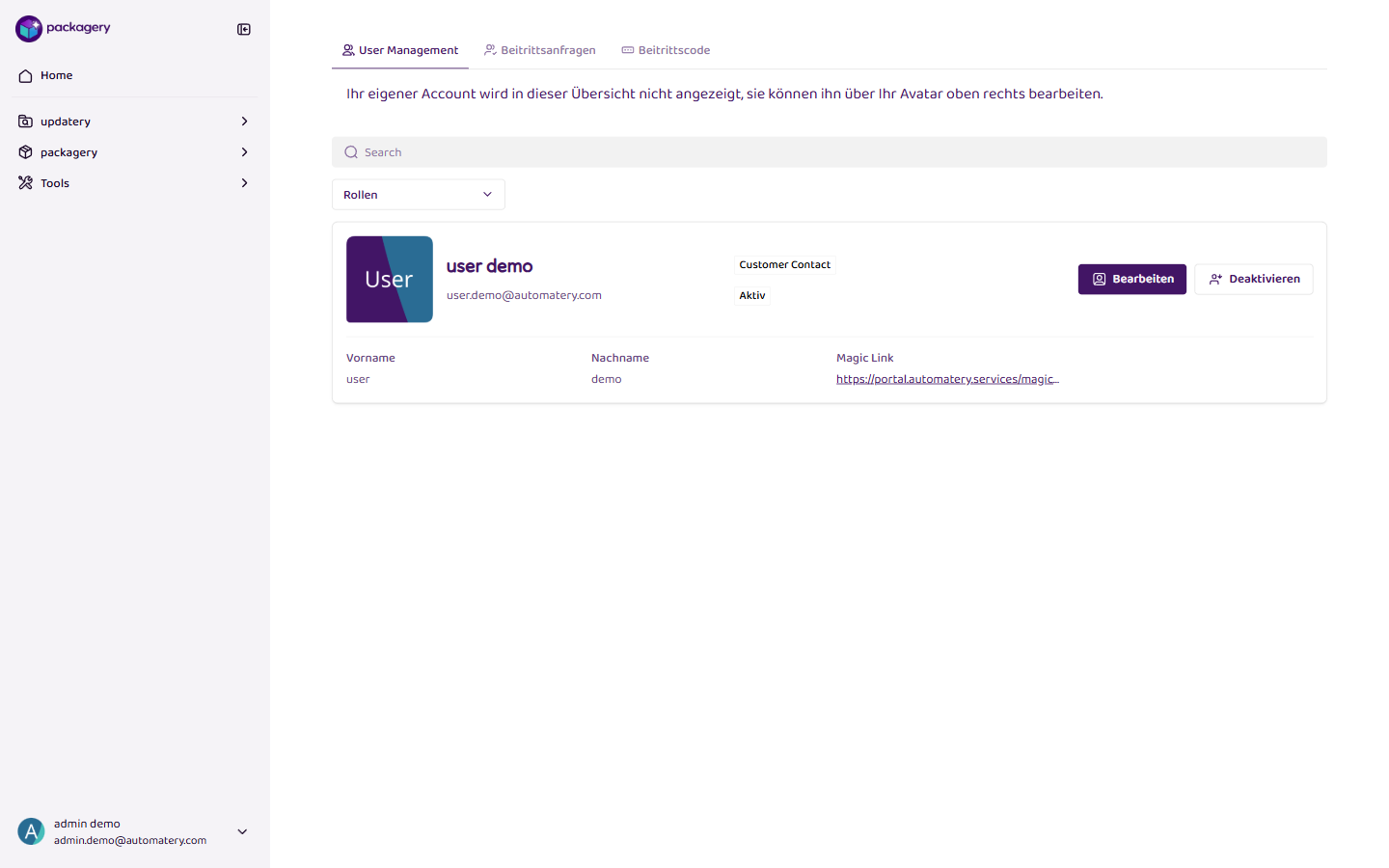
The main tab shows all users in your tenant (your own account is not displayed here — edit it via Account Settings).
Each user entry shows:
- Name and avatar
- Role (e.g., Customer Contact)
- Email address
- Status (Active or Deactivated)
Actions
Section titled “Actions”- Edit — Modify a user’s first name, last name, or role.
- Deactivate — Deactivate a user account. Deactivated users can no longer log in.
Use the Search field to find users by name or email. Filter by Role using the dropdown.
Join Requests Tab
Section titled “Join Requests Tab”When new employees join your tenant using the join code, their requests appear here. They cannot use the portal until an administrator approves them.
-
Open the Join Requests tab
Navigate to User Management and click the Join Requests tab.
-
Review the request
Each request shows the person’s name, email, and status (Waiting).
-
Approve or reject
Click Approve to grant portal access, or Reject to deny the request.
Join Code Tab
Section titled “Join Code Tab”The join code is a unique code that you can share with employees so they can register for your tenant.
- View the code — The current join code is displayed on this tab.
- Regenerate — Click Regenerate Code to create a new code. The old code will stop working immediately.